

IMPORTING A TEMPLATE FROM ILLUSTRATOR
To add a new template, you need to use the control panel. In case of adding a ready-made template created in Adobe Illustrator, the control panel serves as a tool for adjusting the template. The editor interface in the control panel is almost identical to the interface of regular users (printing house clients), although there are some minor differences.
Create a set of SVG files in Adobe Illustrator
WARNING
The .AI file cannot be imported into the editor without converting it to SVG!
To start importing a template, you need to create it in Illustrator and save it in SVG format. Please pay attention to the requirements for saving the file (see REQUIREMENTS FOR Adobe Illustrator SVG TEMPLATES).
Go to the list of available templates
Log into your InCanva control panel and click on the Templates tab. You will see all templates.
Create a new template
Click the "Add template" button. This action is required to start the import process. In the window, select the product you want to create.
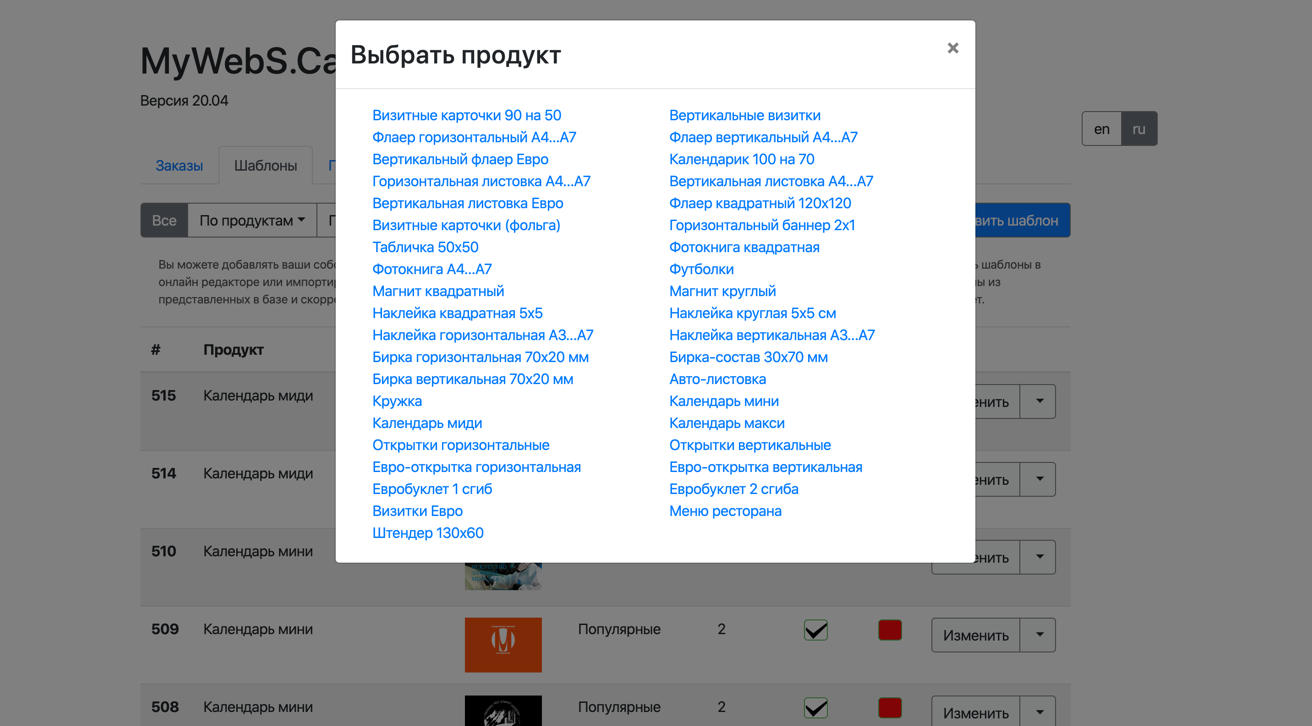
Creating a new template
As a result, an empty template of the correct format - a white sheet - should be opened on the screen in the editor.
Go to the import tab
On the toolbar, go to the import tab and click the "Select files" button
Selecting an SVG file
In the modal window that opens, click on the "Select file" field or drag the file with the template.
Import
After selecting the SVG files, the file with the template will be displayed in the "Files" tab. To display the template on the canvas, click on the "File 1" or "File 2" buttons (the desired page is added).
Editing
After clicking on adding a page, you need to look at the result. If nothing was added or there are too many objects, you need to refine the template in Illustrator. If successful, you may need to make adjustments to correctly position the objects. This is done in the program.
Save the imported template
At the end of editing, do not forget to click the "Save" button.
Check the final result
After editing the template in the designer, check the presence of the created template in the list of templates.
More
Check out the documentation for the full list of markdown extensions.